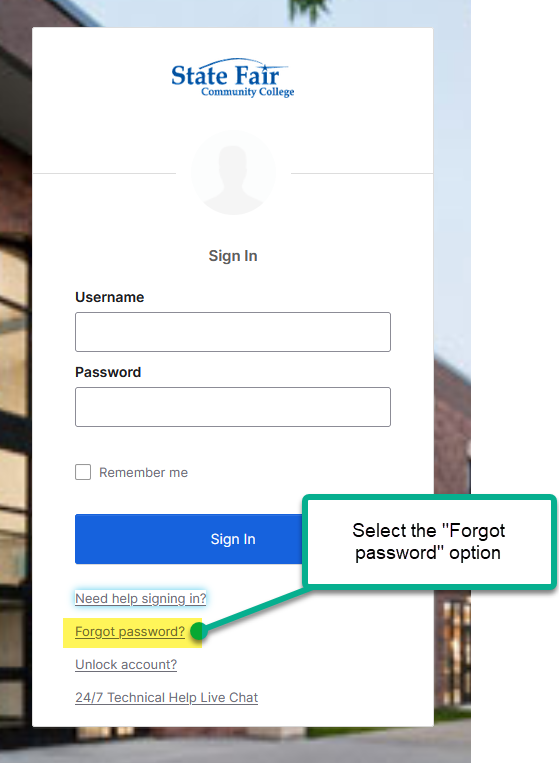
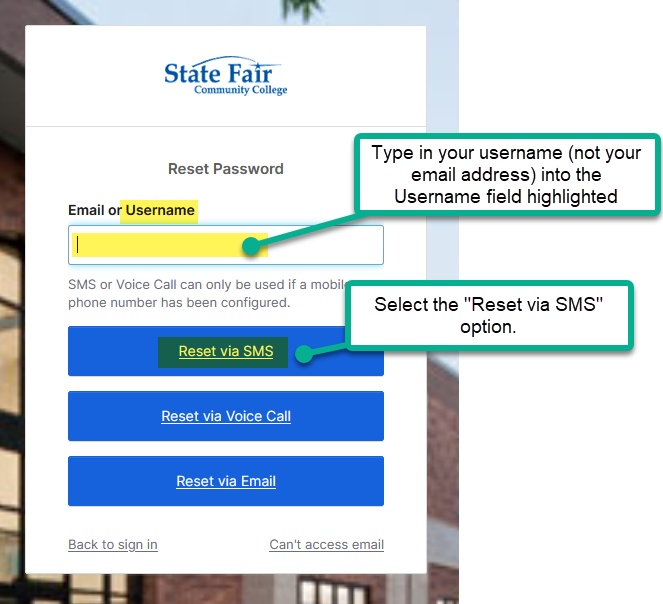
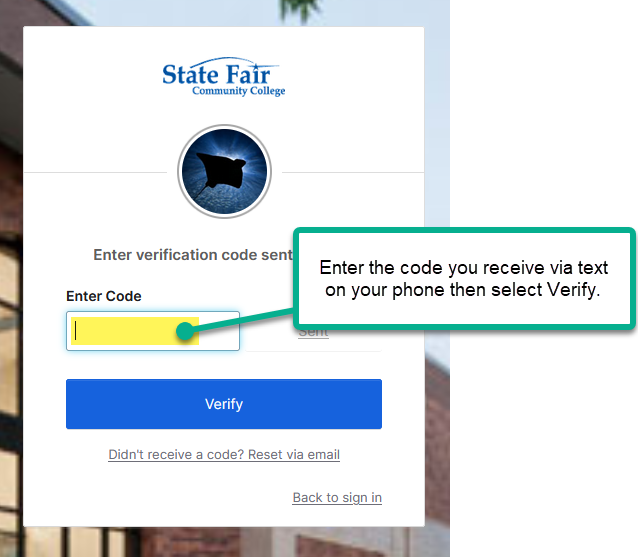
Changing Your Password
To change your password,
Step 1: Log in to your SFCC Okta account.
Step 2: Click on your first name in the top menu bar, and select Settings from the drop down.
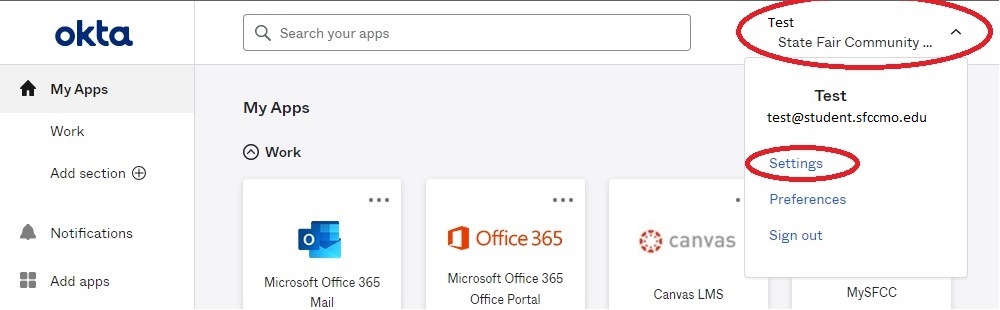
Step 3: In the Change Password section, enter your current password and the new password you’ve chosen. Make sure your password meets the complexity guidelines below.
- Password requirements:
- At least 12 characters
- Does not include your first or last name
- Your password cannot be any of your last 5 passwords
- Must contain:
- Lowercase letter
- Uppercase letter
- Number
- Special character
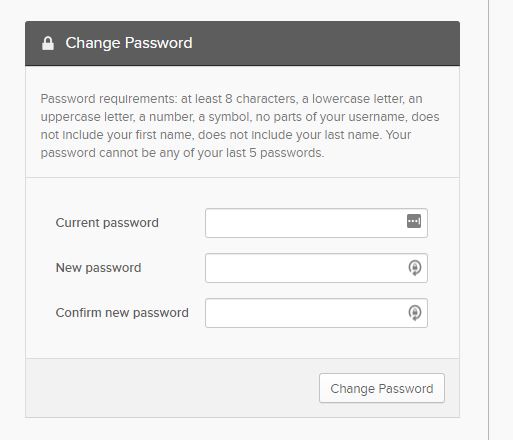
Step 4: Click Change Password and you’re good to go.
Changing Your Multi Factor Authentication (MFA)
To change your Multi Factor Authentication (MFA) registrations,
Step 1: Log in to your SFCC Okta account.
Step 2: Click on your first name in the top menu bar, and select Settings from the drop down.
Step 3: In the Extra Verification section. Select Set up for the Verification you want to register. Register more than one factor. Register the voice factor to a phone number that is not your cell phone.
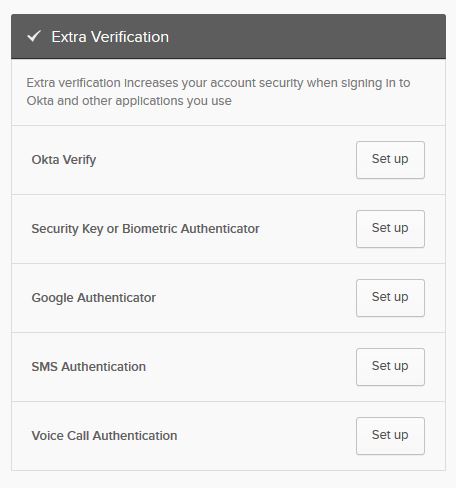
Step 4: Click Okta Verify to register using the Okta Verify smart phone app (Android and iPhone). You can watch a video on how to install the app here. After registering the QRCode, the app will show a 6 digit code and a scroll bar. Registration is complete. When you login, the app will popup asking if you are logging in. Click yes to the Okta Verify App popup and your login is complete.
Step 5: Click Security Key or Biometric Authenticator to register a physical security key. ITS has tested compatibility with Yubico Security Keys (Blue). Security Keys are available at the Campus Store or ITS can provide a quote. Contact ITS with questions.
Step 6: Click Google Authenticator to register using the Google Authenticator smart phone app (Android and iPhone). After registering the QRcode, the app will show 6 digits and a time spinner. When logging in you will need to type in the 6 digit code when prompted.
Step 7: Click SMS Authentication to setup text messaging. After registration, Okta will send you a new 6 digit code each time you login, you will need to type this code in to finish your login
Step 8: Click Voice Call Authentication to setup a voice callback to any phone. After registration, Okta will call you with a new 6 digit code each time you login, you will need to type this code in to finish your login.
Step 9: Click Home in the top navigation bar to go back to the Okta dashboard.
Multi Factor FAQ
Multi Factor Authentication (MFA)
What is Multi Factor Authentication (MFA)?
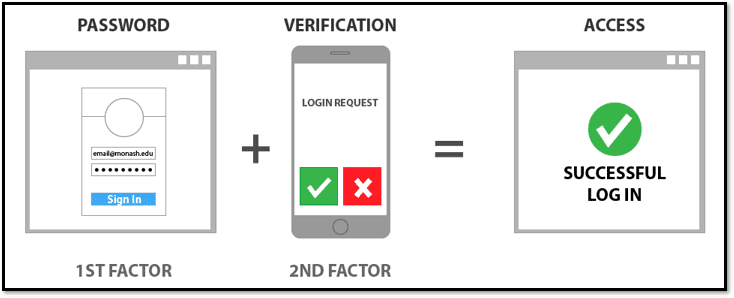
Multi-factor authentication occurs when you are required to use a secondary authentication factor to verify you are the one actually logging on. As presented in the image below, you begin by using a username and password. After you submit the username and password, a message is sent to your smartphone in Okta Verify App which you can then accept or type in a code sent via text messaging (SMS) or voice call. This will then finish the login process to your SFCC applications. The secondary factor is to secure your access most online banking requires MFA.
Why are we requiring MFA?
Passwords have proven largely to be a failure. Come to find out humans don’t make good passwords and we make even worse ones when we have to change them. Security best practices advise us to accept this and use an additional “factor” of authentication on top of a password.
Should your password be compromised, we can now assure you that your account is safe when using MFA. This applies to your personal data along with the College’s data on all students and employees. The majority of attacks are focusing on stealing credentials (user names and passwords). MFA credentials cannot be stolen because they are tied to something you have physically (cell phone). The attacker would need to steal your password and your phone to get to your data.
Do I need to signup for more than one method?
Yes. Should you forget or loose your phone, you want a backup MFA registered. We support several different methods. The Okta Verify Push, Google Authenticator and SMS are both tied to cell phones, but you could register an alternative voice phone number or use the Security Key or Biometric options. If you do find yourself locked out of your account, you can contact the Help Desk 24x7x365 (866)295-3070 for assistance.
What is the easiest option?
We have found most people register for texting (SMS), however we find those using the Okta Verify App have the least amount of effort during login. Security Key’s are equally easy, but you want to make sure you do not forget it in a computer somewhere.
Okta Verify App
I downloaded Okta Mobile but can’t register the QRcode?
Okta has two apps, Okta Mobile and Okta Verify. SFCC uses Okta Verify for Multi Factor Authentication (MFA). Uninstall Okta Mobile and install Okta Verify.
All the app does is show six numbers and a constantly scrolling bar?
This is normal. The 6-digit number can be used to authenticate just like Google Authenticator or similar to the text message and voice calls. The app is not downloading anything or using any significant amount of battery. The app is generating the number in synchronization with Okta for authentication. If you are interested in more details on the technology and math being used, you can start by looking at this Wikipedia article.
Does the app use up my cell phone data plan?
The Okta Verify app uses very little data. Based upon SFCC ITS testing, it will use around 1 Mb of data per month under daily usage. If connected to Wi-Fi, this will not count against your cell phone data plan.
Does the app use my battery?
The Okta Verify app uses very little battery. Based upon SFCC ITS testing, it uses around .4% of battery over a 1 week period under daily usage.
What if my cell phone does not have signal?
If your phone is connected to Wi-Fi it will still receive the popup. If Wi-Fi is not available you can still choose SMS (texting), voice call, or type in the 6-digit code embedded in the Okta Verify app.
What if I have other questions?
Please visit Okta’s FAQ or open a help desk ticket.